
How to Bulk List Sports Cards on eBay
To bulk list sports cards on eBay, prepare a group of cards together, upload their images, review a separate listing for each card, and publish the ones that are ready. The useful time savings come from repeating fewer setup tasks while keeping each card’s photos, details and price separate.
Start with 10 cards. That is enough to test your photo order, review process and storage system without creating a large pile of unfinished drafts.
Bulk listing singles and selling a bulk lot are different
Ten individual listings give buyers ten separate cards to find and purchase. One bulk lot sells all ten together. A You-Pick listing lets buyers choose individual cards from a shared listing.
| Your goal | Format to use |
|---|---|
| Give each card its own searchable listing | Individual listings |
| Sell the entire group for one price | A bulk lot |
| Let buyers choose missing cards from a set | You-Pick |
This guide covers individual listings. For a group sold together, use our bulk card lot guide.
1. Sort a manageable batch before taking photos
Choose cards you can review in one sitting. Set aside anything that needs more research, a different photography setup or detailed condition notes. Keep numbered cards and similar-looking parallels easy to distinguish.
Give the batch a physical home, such as a labeled tray or a short row in a card box. A listing workflow is only useful if you can find the right card after it sells.
2. Keep front and back images in a predictable order
Use the same sequence for every card: front, matching back, then the next card. Check the upload order before identification. A clear front paired with another card’s back creates more review work than it saves.
For files you name yourself, a sequence such as 001-front, 001-back, 002-front, 002-back is easy to audit. Confirm the actual order displayed after upload instead of assuming the file picker preserved it.
3. Choose Individual listings in MyCardFlow
Choose Individual listings when starting the batch, select the appropriate card type and photo mode, and add your images. The result should be one card per listing draft. Uploading a stack does not mean you should choose the lot format.
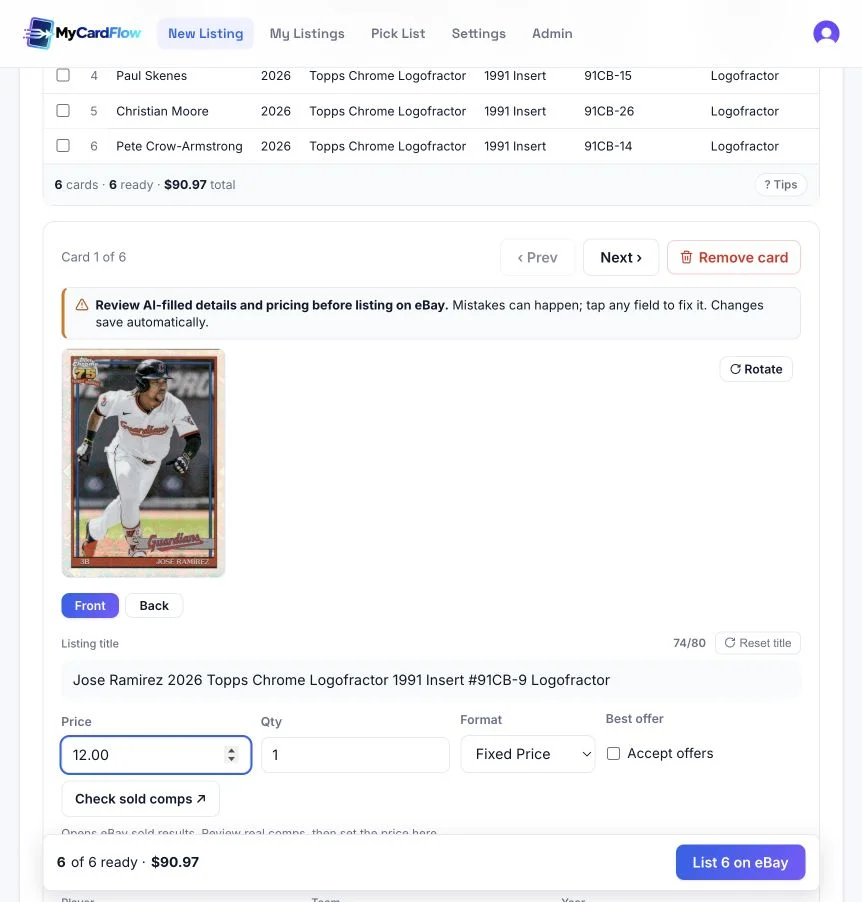
MyCardFlow prepares editable card details from the images. Use the individual-card listing workflow to see how batch review fits into the product.
4. Review shared settings, then check each card
Shared defaults are useful for genuinely shared choices, such as your usual shipping policy. They cannot establish each card’s condition, identity or asking price.
- Match the player, release year, set and card number to the physical card.
- Check the parallel, insert and serial numbering where applicable.
- Make sure both images belong to the same card and show its condition.
- Check the title, relevant item specifics and price.
- Confirm the shipping policy suits that card’s packaging and value.
For example, if nine cards can use your usual envelope service but one needs a package, change the exception before publishing. Do not let the batch default decide how you protect that card.
5. Publish the ready cards and reconcile the batch
Connect your eBay account and review the publication results. Check which cards actually went live before retrying any failures. A missing price or another validation error needs correction; uploading again is not the first step.
Keep a simple count: 10 cards started, 8 live, 2 awaiting review. Those numbers are an example of a reconciliation, not a claim about MyCardFlow’s success rate. The count helps prevent forgotten drafts and accidental duplicate work.
Move each card to its recorded location. Our card organization guide covers building a system you can use when orders arrive.
Measure the full job before making the batch larger
Time your own 10-card batch from sorting through storage. Record photo preparation, identification, corrections, pricing and publication separately. If photos take most of the time, improve the capture setup. If corrections dominate, inspect image quality and the kinds of cards you grouped together.
Do not compare a finished batch with a manual estimate that excludes pricing or packing preparation. A useful comparison includes the same steps and counts only listings that are ready for buyers.
Ready to make this a regular routine? Our guide to listing 100–500 sports cards a week on eBay shows how to split the work into sessions and keep review, publishing, and storage on track.
Common questions
Do I need a scanner to bulk list cards?
No. Phone photos can work. Use whichever method produces readable, correctly paired images consistently.
Does every card need the same price?
No. Each individual listing has its own price. Research the exact version and condition instead of applying one price to unrelated cards.
Can I finish a batch later?
Return to the saved batch through My Listings. Keep its physical cards together until you have reconciled the drafts and published listings.