
Using MyCardFlow to List 100–500 Sports Cards a Week on eBay
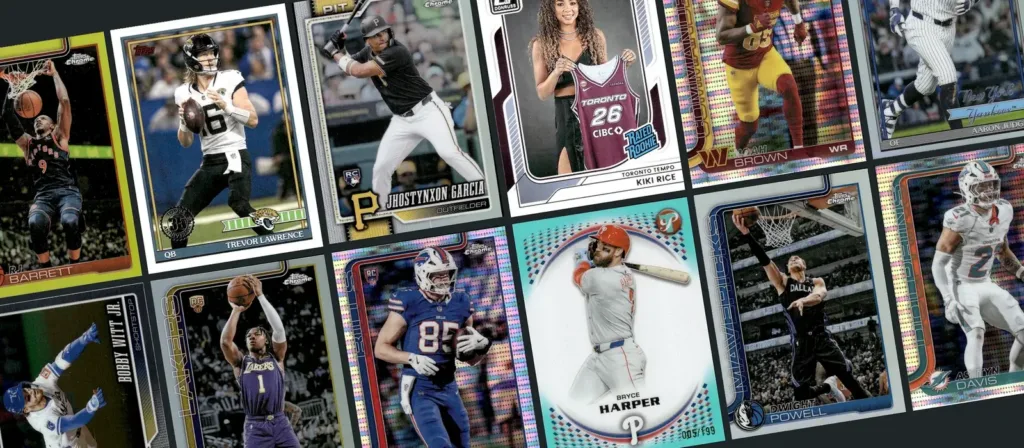
Listing 100–500 sports cards a week on eBay takes a repeatable process: prepare a manageable batch, capture clear images, review the card details and prices, publish the ready listings, and put every card somewhere you can find it when it sells.
MyCardFlow supports that workflow with phone or scanner image uploads, individual listings, bulk lots, You-Pick listings, and direct publishing to your own eBay store. This guide shows how to organize those tools around a weekly target. The numbers below are planning examples, not measured throughput or a promise of sales.
Turn your weekly target into smaller sessions
Start with the number of physical cards you want to make available for sale. If you have five listing sessions each week, the workload breaks down like this:
| Weekly card target | Cards per session, over five sessions | Average cards per month |
|---|---|---|
| 100 | 20 | About 433 |
| 250 | 50 | About 1,083 |
| 500 | 100 | About 2,167 |
The monthly figures use 52 weeks divided by 12 months, rounded to whole cards. They are not scan-credit requirements or exact billing-cycle totals. A session can contain several smaller batches; it does not mean uploading everything at once.
Begin with ten representative cards before committing to a larger schedule. Include the kinds of cards you actually sell, such as base cards, inserts, parallels, and cards that need closer condition inspection. Time the whole process, including corrections and storage.
1. Choose the listing format before you photograph
Sort your incoming stack into three groups so you can capture and review each group with its final listing in mind:
- Individual listings: each card gets its own photos, title, and price. Use these when you want buyers to purchase a specific card separately.
- Bulk lots: several cards sell together for one price. Group cards into an understandable offering, such as a player, team, or set, and make the included cards clear.
- You-Pick listings: buyers choose individual cards from one listing. MyCardFlow supports up to 250 choices, each with its own photo, price, and quantity.
Keep physical-card counts separate from listing counts. For example, 50 individual cards, one 30-card lot, and one You-Pick containing 20 different cards make 100 physical cards available through 52 new eBay listings. That example assumes one copy of each You-Pick card.
For inexpensive inventory, our guide to selling low-value sports cards helps you think through singles, lots, and You-Picks before you spend time preparing them.
2. Capture images in batches you can keep organized
You can upload card images from your phone or scanner. Use a consistent capture setup and keep each card’s front and back together. Check focus, glare, cropped edges, and whether small details such as card numbers or serial numbering are readable. See the card photo and scanning guide for setup help, or follow our photo-to-eBay listing walkthrough.
Give each physical batch a simple label, such as “Monday A,” and keep the cards in capture order until review is complete. Start the next batch only when you can still account for the previous one. Larger uploads will not save time if you have to search through a mixed stack to resolve a mismatch.
For eligible sports base cards and inserts, active paid plans currently include a separate Base & Inserts scanning option during Beta. It requires front and back images and matches against card checklists without using monthly AI scan credits. Serial-numbered cards use AI credits. If no checklist match is found, you can enter details manually or choose full AI detection using credits. Check the current eligibility and pricing as this temporary Beta benefit may change.
3. Review the details that make each card different
MyCardFlow prepares listing information from your images, but your review is part of the workflow. Before publishing, check:
- The player, year, manufacturer, set, and card number.
- The exact insert or parallel, including any visible serial numbering.
- That the front and back images belong to the same card.
- The condition description and any flaws the buyer should know about.
- The price, quantity, and shipping settings for the intended listing.
Put uncertain cards into a separate review pile. A difficult parallel should not hold up the rest of a ready batch, and a weekly target should not push you into publishing a guess.
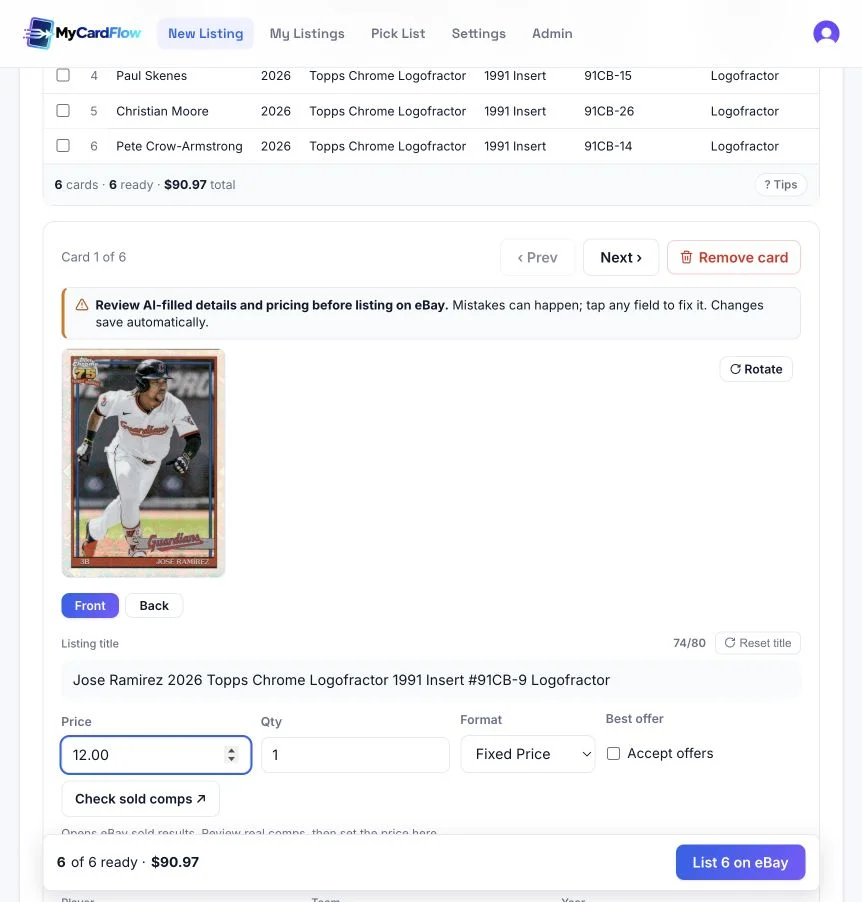
Price cards using relevant comparisons for the exact card and condition. Review unusual or higher-value cards separately instead of applying one price across a mixed batch. Our guide to finding eBay sold comps explains that research step.
4. Publish the ready cards and reconcile the results
Publish reviewed listings directly to eBay through MyCardFlow. Then confirm which listings went live and which still need attention. Count a card toward your weekly goal once it is available to buy, rather than when its image has been uploaded.
Keep a simple batch record with cards prepared, cards made available for sale, and cards held for correction. Record the live listing references so you can check an uncertain publishing result before retrying. For You-Picks, distinguish adding choices or quantity to an existing listing from creating a new listing.
For the detailed upload-to-publication walkthrough, use our bulk sports-card listing guide.
5. Store cards so next week’s orders are easy to pull
Move published cards into a labeled storage location and record where they went. Keep unlisted, held, and live inventory physically distinguishable. For a lot, keep the entire lot together. For a You-Pick, keep each choice and its quantity easy to identify; MyCardFlow’s You-Pick workflow also supports restocking and location-based pick lists.
A box-and-row system can be enough if you use it consistently. The important check is whether you can locate a sold card without searching through the week’s intake. See our card organization guide for a practical storage approach.
What you need to scale listing and fulfillment
You don’t need a room full of equipment to get going. But once you’re working through a few hundred cards a week, a few basics can make listing and shipping much easier.
An autofeed scanner
Taking front-and-back photos one card at a time can eat up your evening. A duplex autofeed scanner lets you capture both sides of suitable cards, then upload the images to MyCardFlow to prepare your listings. Check that the scanner works with your computer and the types of cards you sell, and try a small batch before settling into a routine.
Keep your phone or a flatbed handy for cards you don’t want going through rollers. Ricoh’s card-scanning guide advises against feeding slabs through a sheet-fed scanner and generally discourages penny sleeves, which can crease in the feeder.
A thermal label printer
If you’re still cutting out paper labels and taping them to every package, this is an upgrade you’ll appreciate when orders start piling up. A thermal label printer lets you print, peel, and stick. Just make sure it works with your computer or phone and supports the label sizes you use.
You can print labels from your eBay orders. Run a test label before buying a big stack of supplies, and check eBay’s printing guide if you need help getting the format right.
Packing supplies within reach
Keep sleeves, suitable card protection, tape, bubble mailers, and plain #10 envelopes stocked where you pack orders. Use bubble mailers for orders going by a package service, and #10 envelopes for eligible eBay Standard Envelope (ESE) shipments.
A #10 envelope is a simple option for ESE, but the packed envelope still needs to meet eBay’s requirements, including flexibility, an even thickness of no more than ¼ inch, and a weight of no more than 3 oz. Keep a small postal scale and ruler nearby so you can check the finished envelope or package before buying postage.
Having everything in one spot means you can sit down, pack your orders, and get on with your day.
A weekly routine you can adjust
Reserve time for sold orders before setting your listing target. Then repeat this sequence during each listing session:
- Select the day’s stack and assign singles, lots, or You-Picks.
- Capture images and prepare a manageable batch in MyCardFlow.
- Review identities, condition, prices, and listing settings.
- Publish ready items, confirm the results, and store the cards.
- Record unresolved cards and the next action each needs.
At the end of the week, compare your target with the physical cards actually made available for sale. Also record new listings, time spent, and cards still held. If the review pile grows every week, reduce intake temporarily and resolve the cause before increasing the target.
Use your own measured pace to budget time: minutes per card made available × next week’s card target ÷ 60 gives an estimated number of hours. Include sorting, capture, review, publishing checks, and storage in that measurement. Reserve additional time for order fulfillment and customer service. A week dominated by simple base cards may not predict a week full of unfamiliar parallels.
How many scan credits will this require?
Weekly card volume and AI credit usage are different measures. A successful standard identification uses one credit; paired front and back images count as one card identification. Rescans use another credit, while failed identifications are not charged. Editing and publishing do not use scan credits.
Your mix of standard AI identifications, rescans, and eligible Base & Inserts scans determines your allowance needs. Check actual usage during your first week, then compare it with the allowances on the pricing page. Do not choose a plan solely by multiplying your weekly card count by four.
A real store example from MyCardFlow
In an October 21 update on X, we shared early results from an eBay store we opened on October 4 and were building with MyCardFlow. By October 20, the store had recorded 75 orders, 215 cards sold, and $369.21 in card sales.
Those are sales results reported by MyCardFlow, not a measurement of listing speed. They do not establish how many cards were listed each week, the time spent preparing them, or profit after costs. They offer a concrete example to explore alongside the weekly workflow above; your results will depend on your inventory, pricing, costs, and buyer demand.
Common questions
Do I need a dedicated scanner to list 100–500 cards a week?
No dedicated scanner is required to use MyCardFlow; phone images are supported. Whether a phone or scanner fits your weekly target depends on your capture setup, image quality, and measured review time. Test your own cards before changing equipment.
Does listing 500 cards mean creating 500 eBay listings?
Only if every card gets a separate listing. Lots combine cards into one purchase, while You-Picks let buyers select cards from one listing. Track both physical inventory and listing counts.
Does MyCardFlow guarantee that I can list or sell 500 cards each week?
No. This is a planning workflow, not a speed or sales guarantee. Your available time, card mix, required corrections, pricing, and buyer demand affect the outcome. Listed cards and sold cards are separate measures.
Start with one complete batch
Try MyCardFlow with your own cards. Take ten cards through capture, review, eBay publication, and storage. Use what you learn to set a weekly target you can maintain, then increase it as the process becomes more consistent.