
How to Create eBay Sports Card Listings from Photos
You can create eBay sports card listings from phone photos without buying a dedicated scanner. Photograph the card clearly, use the images to prepare a draft, then verify the identity, condition, price and shipping before publishing.
The important part is what the pictures reveal. A recognizable player portrait does not necessarily distinguish a base card from an insert, parallel or another release using the same image.
1. Set up a repeatable place to take photos
Use a plain surface and even light. Keep the phone steady and the whole card inside the frame. Before photographing a stack, enlarge one test image and check whether you can read the smallest identifying text.
For reflective cards, move the light or camera until the glare no longer hides the name, surface or numbering. Take an additional angle when it helps show the finish. Keep a clear straight-on image too, so the card’s shape and edges remain easy to inspect.
Avoid editing away scratches, whitening or other condition details. The image should help a buyer understand the copy you will ship.
2. Capture the front and the matching back
The front shows the design and player; the back can supply the card number, set clues and identifying text. Photograph both sides before moving to the next card. Check that small numbers are sharp rather than relying on how the thumbnail looks.
If the card is numbered, make sure the stamp can be read. If it is graded, include a readable slab label and photos that let the buyer inspect the holder and card.
3. Add the photos to MyCardFlow
Start an individual listing and select your card type. Choose Fronts and backs for paired images, keeping each front immediately before its matching back. You can take photos on your phone or choose existing images from your library.
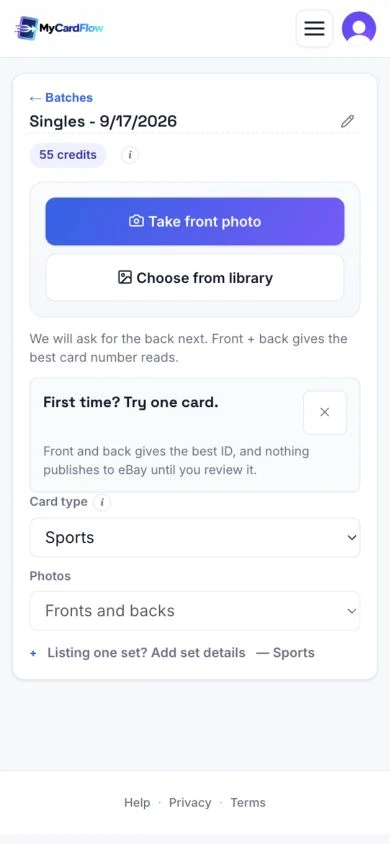
Check the images before identification. If a number is unreadable, retake that side now. The photo and scanning help guide covers image order and upload troubleshooting.
4. Verify the draft against the card
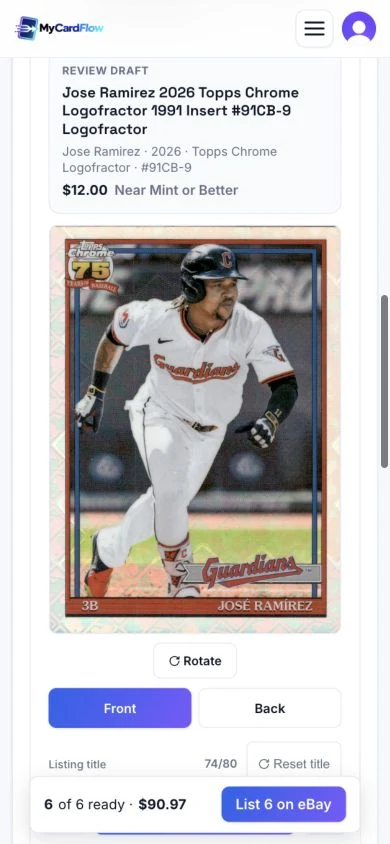
Work through a short identity check: player, year, product, card number, parallel or insert, and any serial numbering. Then compare the condition description and photos.
A year in the statistics or copyright line may differ from the release year. A green area in the design does not by itself establish a Green parallel. If the software returns an uncertain version, check the physical card and the relevant checklist before using that name in a listing.
5. Choose the price and shipping
Look for recent sales matching the actual card, including its version and condition. Compare the buyer’s combined item and shipping cost. An unrelated high sale is not a reason to price your copy the same way.
Read the sports card pricing guide for the research process. Here, the goal is to finish a listing that accurately describes your card and makes sense after your selling costs.
Select an appropriate shipping policy and inspect the rest of the draft. When everything is ready, publish through your connected eBay account. Check the resulting listing, especially the image pairing and title.
Fix the photo problem before repeating the scan
| What you see | What to change |
|---|---|
| Foil reflection covers the name or numbering | Move the light or camera and retake the image. |
| The front and back identify different cards | Correct the image pairing before continuing. |
| Small text becomes a blur when enlarged | Steady the phone, improve the light and refocus. |
| The base card is identified but the finish is uncertain | Add a useful angle and verify the version against the card and checklist. |
See the review step in a real demonstration
Our mobile listing demonstration shows uploaded front and back scans becoming a listing. The year is corrected before publication. That is a useful example of why checking the draft matters.
The demonstration is edited and uses pre-existing scans. Its running time is not a measurement of photographing, researching and listing a fresh card.
Once your photo setup is working, use our weekly sports-card listing workflow to plan batches around the time you have for review, publishing, and shipping.
Common questions
Can I use a scanner instead of a phone?
Yes. Upload the resulting images and follow the same review steps. A scanner changes how you capture the image, not which details you need to verify.
Can a photo establish the card’s grade?
A photo helps document visible condition. It does not authenticate a card or award a professional grade. Check any existing grading information against the slab label.
Should I start with a large stack?
Finish one card first. Once the photos, review and publication work for you, repeat the same process with a small batch.