
How to Set Up Best Offer for Sports Cards on eBay
To set up Best Offer for a sports card, choose a supported listing, enable Allow offers in eBay’s pricing controls and decide whether to use automatic responses. Start with your costs and recent comps, then set thresholds that fit that particular card.
This guide focuses on fixed-price single-card listings. Do not assume that every category, auction or multi-variation listing offers the same controls.
1. Set your asking price and lowest acceptable offer
Use our sports card pricing guide to establish the asking price. Then calculate what you would keep at a lower offer using the eBay card fee calculator. Include postage, supplies and acquisition cost when deciding whether the outcome meets your needs.
Do not set your minimum by subtracting an automatic percentage from the asking price. A 20% discount can be manageable on one card and erase the margin on another. The dollar amount left after costs is what matters.
2. Enable offers in the eBay listing editor
In eBay’s advanced listing tool, open Pricing, turn on Allow offers, then optionally enter a Minimum offer amount and an Auto accept amount. Review the values and save the listing changes. Available controls vary by listing. See eBay’s Best Offer setup instructions.
The lower threshold rejects offers below it; the upper threshold accepts qualifying offers automatically. Offers between the thresholds come to you for review. Auto-accept must be below the Buy It Now price, and availability has exceptions.
Enable Best Offer at three levels in MyCardFlow
If you prepare listings with MyCardFlow’s sports card listing software, you can choose how broadly to enable offers before publishing:
- Account default: In Listing settings, find Offers, turn on Accept offers by default and save. This sets the starting preference for new fixed-price singles and lots.
- Batch level: In a singles batch, open Defaults for new cards and select Best offer → Accept offers. New cards inherit that choice as they are identified. To update cards already in the batch, use Apply to all; review the other defaults first, because that action applies those settings too.
- Individual listing: While reviewing a fixed-price single, use its Best offer → Accept offers checkbox to turn offers on or off for that card. For example, enable offers across a batch, then switch them off on a card whose asking price you want to hold firm.
These controls enable buyers to send offers; they do not automatically accept a buyer’s offer or set the automatic-response thresholds described below. The account default does not change existing listings, and it does not apply to auctions or You-Pick listings. Review each draft before publishing.
3. Choose your automatic-response amounts
Suppose you have already researched a card and chosen these hypothetical settings:
| Setting | Example | Your reasoning |
|---|---|---|
| Buy It Now price | $20 | The asking price you have chosen from the comps. |
| Minimum offer amount | $14 | Lower offers do not meet your own minimum outcome. |
| Auto-accept amount | $17 | This price is acceptable without another review. |
In this example, a $13 offer is below the minimum. A $16 offer leaves you a decision to make. A qualifying $17 offer reaches the automatic acceptance amount. These are illustrative thresholds, not recommended prices for the Ohtani card in our screenshots.
If you would want to examine every offer because the card is rare, the market is moving or the condition is unusual, leave automatic acceptance off. Only turn on auto-accept when you are comfortable letting that sale happen without another check.
4. Check what you would keep from the offer
Before accepting or countering, check the exact card and quantity, the proposed amount and any buyer terms. Recalculate the expected result at that amount. Use the response deadline displayed by eBay rather than leaving an offer unreviewed.
A counteroffer should reflect a price you are willing to honor. Keep your minimum price in mind when replying. If several cards are involved, check that the proposed total and shipping arrangement still work for the complete order.
5. Understand the difference between receiving and sending offers
Best Offer lets a buyer approach you. Offers to Buyers lets you offer a discount on eligible listings to interested shoppers. To find eligible listings, use Seller Hub’s Active Listings and its Send offers eligibility filter. Review the proposed price and settings before sending. eBay explains the two offer tools here.
A watcher is evidence of interest, not a promise to buy. For a card with a thin market, sending an offer may produce no response. Do not treat silence as proof that you need to cut the price again immediately.
6. Check recorded sale prices when researching other sellers
An offer-enabled listing’s public price may differ from its recorded sale price. In our real comparison, the Ohtani listing shown below displayed $15 in sold search while Product Research recorded $12 for one sale on September 27, 2026.
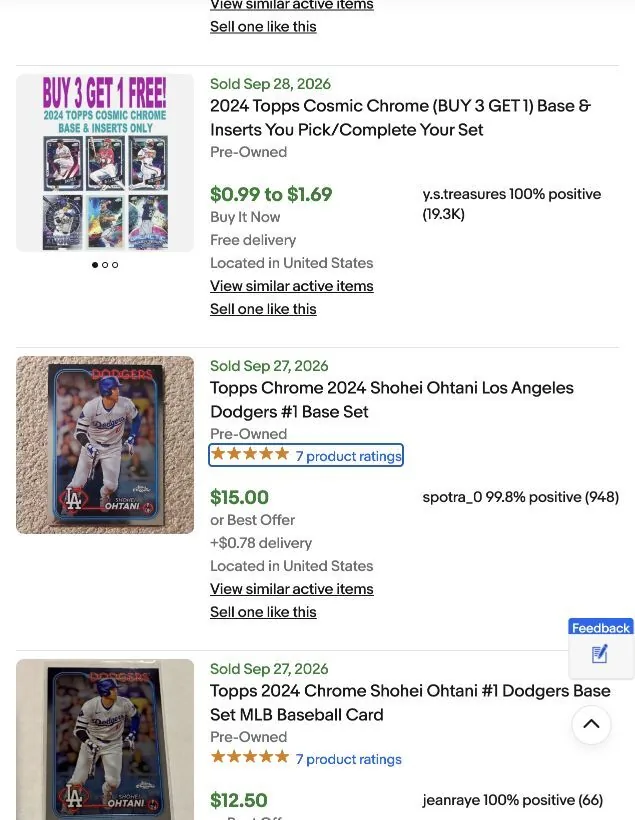
We checked that both results referred to the same listing. They confirm the price difference, but do not show whether it came from an accepted Best Offer. The comps walkthrough with Product Research screenshots shows the $12 row and explains how to use the recorded sale price as a comp.
Review offer settings when you change the price
When you revise an asking price, review any offer thresholds and active automation as part of the same task. A minimum chosen for last month’s costs and comps may no longer fit. Keep a short record of the card’s asking price, acceptable range and review date.
Frequently asked questions
Should I accept every offer above my card cost?
No. Card cost is only one expense. Selling fees, postage, supplies and the return you want for your work also matter. Check what you would keep after all those costs.
Does “or Best Offer” prove a card sold below its asking price?
No. It tells you negotiation was offered. Check the recorded sale price and match the listing before using it as a comp.
Should every card have the same discount percentage?
No. Cards have different demand, margins and replacement costs. A consistent review process is more useful than one discount for every card.