
How to Create an eBay Shipping Policy in MyCardFlow
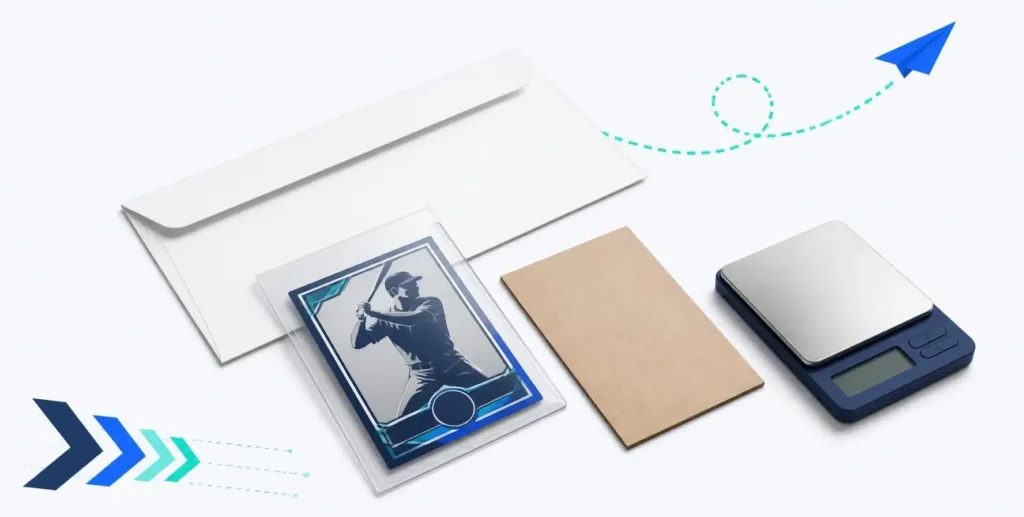
Set up your shipping once, then reuse it when preparing your card listings. MyCardFlow lets you create an eBay shipping policy directly in your connected seller account, including your shipping service, the buyer’s shipping cost, and your handling time.
This guide walks through creating policies for eBay Standard Envelope and USPS Ground Advantage, then selecting the right policy before publishing a card listing.
What is an eBay shipping policy?
A shipping policy is a reusable set of delivery settings for your eBay listings. It tells buyers which service you offer, what they pay for shipping, and how long you need to dispatch an order. You can apply the same policy to multiple listings instead of entering those details each time.
For card sellers, a useful starting point is one policy for eligible cards sent by Standard Envelope and another for cards sent in packages using Ground Advantage. In MyCardFlow, you can create both policies where you manage your eBay connection, then choose between them while reviewing your listings.
1. Open the shipping-policy form in MyCardFlow
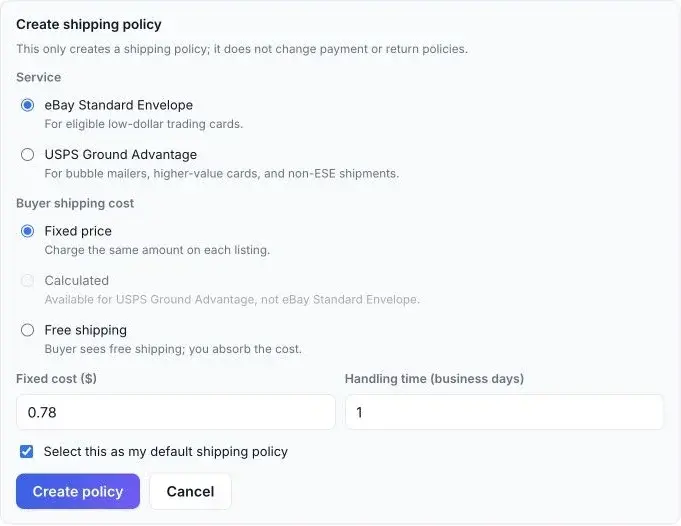
Open MyCardFlow’s eBay settings and connect your seller account if you have not already. Under Shipping & policies, select Create shipping policy.
A plain envelope with ordinary postage. Usually no tracking.
A specific service for eligible orders, with limited tracking and shipping protection under its terms.
Use suitable package shipping when the order is too thick, rigid, valuable or otherwise ineligible for envelope service.
2. Choose a shipping service for your cards
- eBay Standard Envelope: choose this for eligible trading cards in qualifying envelopes. Check our Standard Envelope guide for value, size, and packing requirements.
- USPS Ground Advantage: choose this for packages such as bubble mailers and cards that do not qualify for Standard Envelope.
For example, you might use Standard Envelope for an eligible low-value single and Ground Advantage for a card packed in a bubble mailer. Create a separate policy for each service so you can select the appropriate one for each listing.
3. Set what the buyer pays for shipping
- Fixed price: enter the shipping amount you want to charge the buyer.
- Free shipping: charge no separate shipping fee and account for postage and packaging in your card price.
- Calculated: available for Ground Advantage. eBay uses package details and the destination to calculate the buyer’s cost. Enter accurate package information when preparing the listing.
The fixed amount is a buyer charge, not the cost of a postage label. Use our eBay card fee calculator to estimate how shipping affects your payout.
4. Set handling time and create your policy
Enter the number of business days you need to prepare an order. Leave Select this as my default shipping policy checked if this is the policy you want to use by default, then select Create policy.
MyCardFlow creates the policy in your connected eBay account. If you manually change the Shipping policy dropdown in Settings afterward, select Save settings.
To add a second service, open the form again and create another policy. Uncheck the default option if you want to keep your first policy as the default. For example, keep Standard Envelope as your default for eligible singles and choose your Ground Advantage policy for cards that need a package.
Use suitable protection and keep envelope shipments flat and flexible.
Weigh and measure the sealed order; confirm value and service eligibility.
Buy the correct label and follow the order’s delivery requirements.
5. Select your policy when reviewing a card listing
When preparing a single-card listing in MyCardFlow, check the Shipping dropdown during review. Leave Use my default shipping selected to use your saved default, or choose a specific policy for that card.
Review the service and any required package details alongside your card details and price before publishing. If a card does not qualify for Standard Envelope, select an appropriate package policy even if Standard Envelope is your default.
This connects shipping setup to the rest of your listing process: create your policies once, then select the right one as you review each card. See our sports-card listing workflow for how MyCardFlow helps you prepare card photos, review details, and publish to eBay.
Can I create a shipping policy directly on eBay?
Yes. Open the business policies dashboard in the Account section of My eBay. From Create policy, choose the shipping policy type, enter a descriptive name and your shipping details, then save. See eBay’s business policies instructions for setup and account requirements.
To use that policy in MyCardFlow, open Settings → eBay, select Refresh from eBay, choose it in the Shipping policy dropdown, and select Save settings.
Frequently asked questions
What if I already have a shipping policy on eBay?
You can reuse it. Select Refresh from eBay in MyCardFlow’s eBay settings, choose the existing policy, and save. You do not need to create a duplicate.
Do I need separate policies for Standard Envelope and Ground Advantage?
In MyCardFlow’s creation form, you choose one service per policy. Create one for each service you use, then choose the appropriate policy when reviewing a listing.
Will creating a new policy change my existing listings?
Creating a new policy in MyCardFlow does not reassign live listings or change your payment and return policies. Editing an existing policy in eBay can update compatible listings already using it.