
Create a You-Pick eBay Listing from Card Photos: MyCardFlow Walkthrough
With MyCardFlow’s eBay You-Pick listing software, choose New Listing → You-Pick, add card photos, identify the cards, and review each choice before publishing. You create one listing where buyers choose individual cards, with a price and available quantity for each pick.
This is a hands-on photo-to-listing walkthrough. If you are still deciding which cards belong together, start with our general You-Pick listing guide. A You-Pick is different from a bulk lot: a lot sells the included cards together for one total price.
1. Prepare a focused batch
Use a coherent group, such as cards from the same set or insert run. Keep different parallels identifiable and check the condition of each copy. Set aside damaged cards or unusual variants that need individual attention.
Choose Fronts only or Fronts and backs before uploading. With paired photos, place each card’s front immediately before its back. Use even lighting, keep the whole card visible, and avoid glare across the name, card number, or foil details.
2. Identify the cards, then check the results
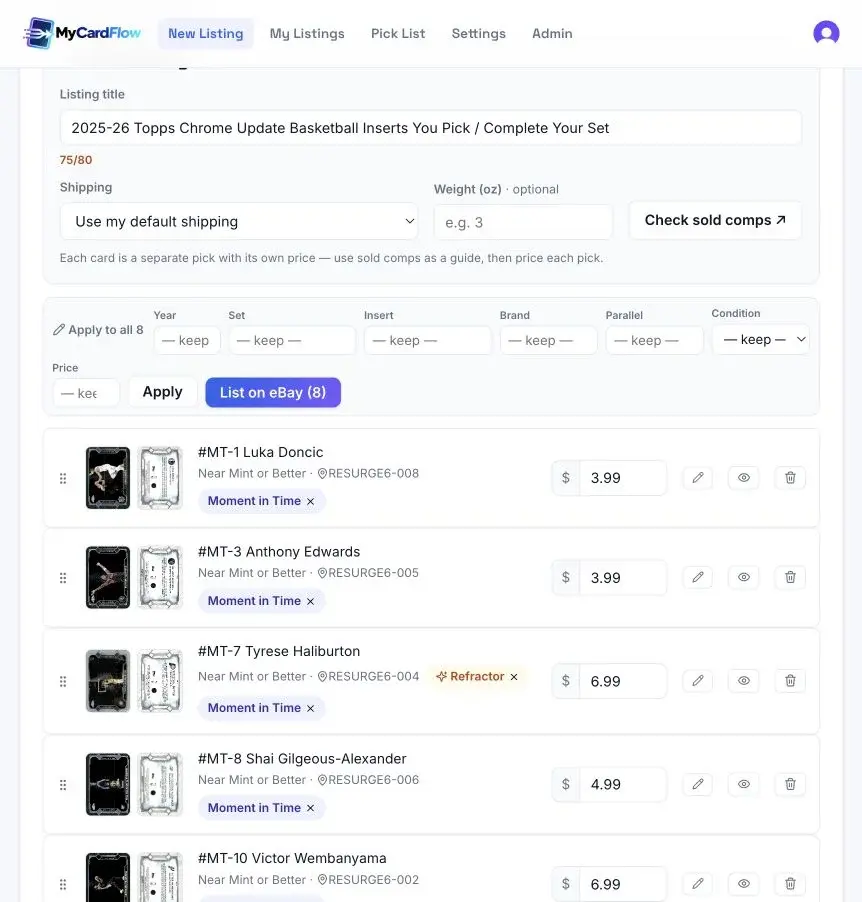
Select the appropriate card type, upload your images, and run identification. Add set details when your batch comes from one product. Uploading and identifying cards does not publish an eBay listing.
Check the card name, number, year, set, insert, parallel, condition, and associated photos. Read the back where needed. Correct an incorrect parallel or insert before proceeding; a recognizable player photo does not by itself confirm the exact version.
One card gets its own title, photos and price. Useful when buyers search for that specific card.
The buyer purchases every included card together for one total price.
The buyer selects individual choices, each with its own price and available quantity.
3. Set prices and review duplicate copies
Enter a price for every pick. Use Apply to all when several choices should have the same price, checking whether you are filling blank prices or replacing existing ones. Review stronger cards and rarer parallels separately instead of applying one amount blindly.
Check sold comps helps you reach sold results; compare the exact card, parallel, and condition before entering a price. An asking price on an unsold listing is not a completed sale.
Matching copies can become one pick with additional quantity. Check that grouped copies really match and that their condition and photos represent what the buyer will receive. Different parallels should remain distinct choices.
4. Give every copy a storage location
Record where the physical cards will live before publishing. A useful reference includes a box and position, such as BOX3A-001. Duplicate copies may share one buyer-facing pick but still need separate location records so you can pull the correct copy.
Keep the physical order consistent with those references. If you move a card, update its location rather than leaving yourself an inaccurate address.
5. Review the shared title, shipping, and Store category
The shared title should describe the choices together: the set, year, and relevant group, with wording such as “You Pick” or “Complete Your Set” where accurate. It should not imply that the buyer receives the entire pictured group.
Choose shipping appropriate for the cards and likely orders. Our shipping-policy walkthrough covers the setup. If you use an eBay Store, check the Store category assignment too.
Before publishing, confirm every pick has a price, accurate details, matching photos, the right quantity, and a location. Resolve any errors shown by MyCardFlow or eBay. Variation availability depends on the eBay category; eBay explains variation listings here.
Check the exact card, number, set and parallel.
Set each choice’s price, quantity, photos and copy locations.
Check sold quantities and refresh the pick list before pulling orders.
6. Publish and check the buyer’s choices
Use the listing button when the batch is ready. After publication, open the live eBay listing and inspect the dropdown choices, prices, quantities, photos, and shipping terms.
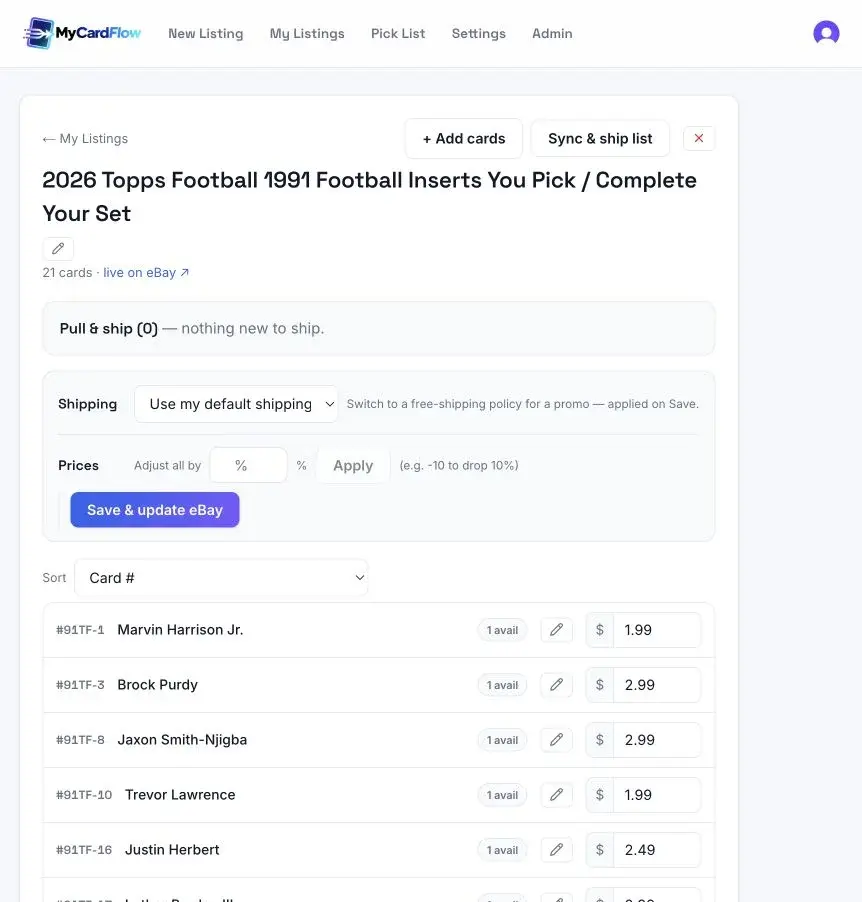
Later, open My Listings → Manage to add cards or restock matching copies. Use Sync & ship list to refresh sold quantities. Review additions before submitting them; adding photos alone does not complete a restock.
Frequently asked questions
Does each card need the same price?
No. Each pick can have its own price and quantity. A shared price is optional.
Can I accept offers on a MyCardFlow You-Pick?
The Accept offers default applies to fixed-price singles and lots, not You-Pick listings. Set a price for each pick.
Is identification enough to publish?
No. Review and correct the results, then complete prices, quantities, locations, and shipping before using the publish control.
Build your first batch
Check the exact card, number, set and parallel.
Set each choice’s price, quantity, photos and copy locations.
Check sold quantities and refresh the pick list before pulling orders.