
How to Add eBay Listings to Store Categories
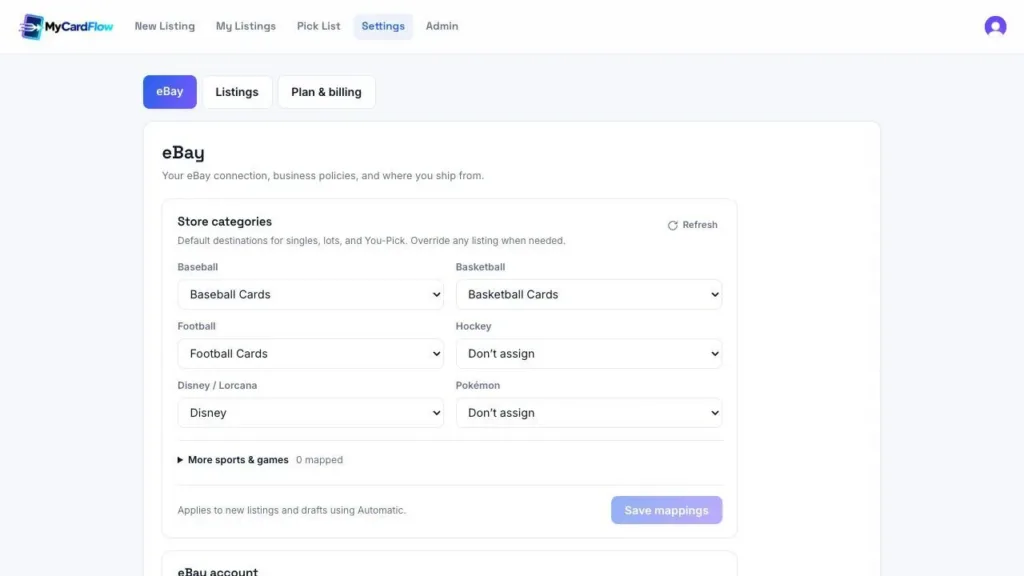
To add an existing eBay listing to a Store category, edit the listing in Seller Hub, find Store categories, choose the destination, and update the listing. For new listings created with MyCardFlow, you can map a sport or game to a Store category once and use Automatic assignment when publishing.
These are two separate jobs: organizing listings already on eBay, and setting up where future listings should go. This guide covers both.
Store categories and eBay item categories are different
An eBay item category describes what you are selling within the marketplace. A Store category organizes inventory inside your own eBay Store. For example, a card can belong in an appropriate trading-card item category while appearing under your Store’s “Baseball Cards” section.
Start with an eBay Store and create the Store categories you want to use. In eBay’s Manage Store categories area, add a category name and save. Choose names that make browsing easy: Baseball Cards, Basketball Cards, Football Cards, or a game you regularly sell. See eBay’s Store categories instructions.
Add existing listings to categories in eBay
- Open your active listings in Seller Hub.
- Edit the listing you want to organize.
- Find Store categories and select a category from the dropdown.
- Select Update listing and check the result.
For multiple listings, select the relevant rows and use eBay’s editing tools to assign Store categories, then review and submit the changes. Allow time for the Store display to update. eBay’s instructions above include the bulk-edit flow.
One card gets its own title, photos and price. Useful when buyers search for that specific card.
The buyer purchases every included card together for one total price.
The buyer selects individual choices, each with its own price and available quantity.
Map new MyCardFlow listings by sport or game
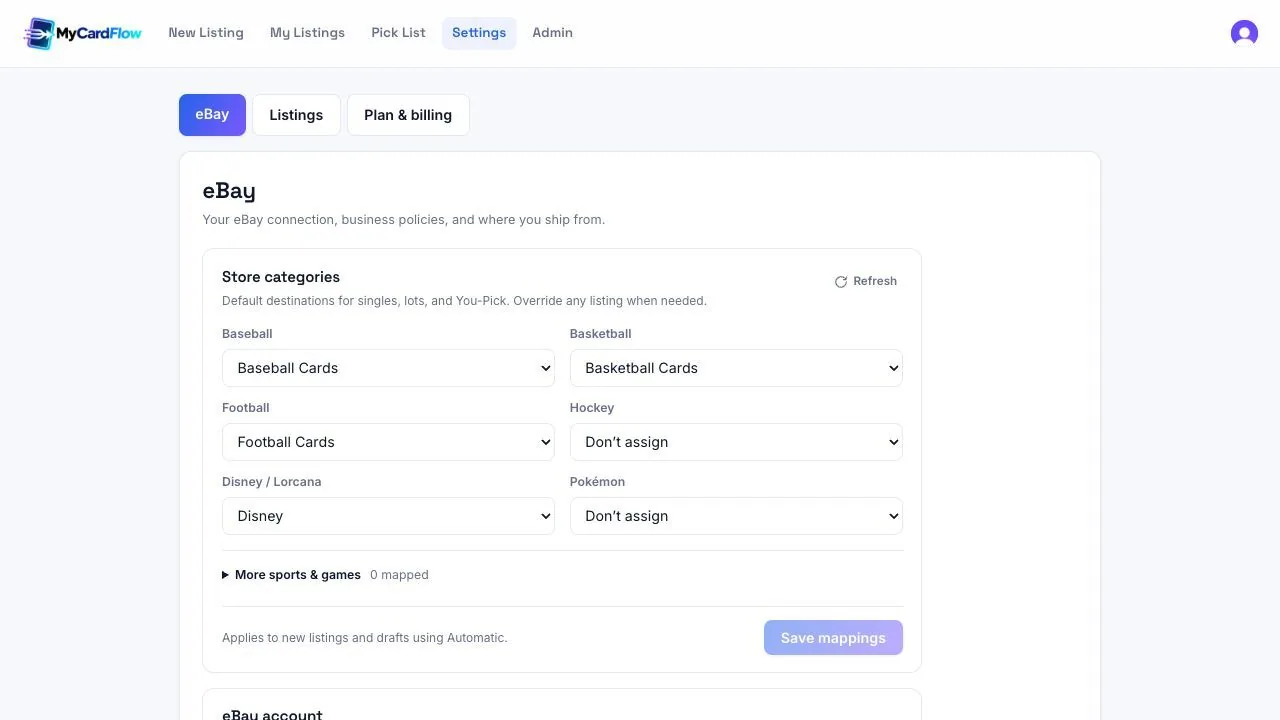
Open Settings → eBay → Store categories in MyCardFlow. Connect your eBay account if needed, then select Load store categories. If categories have already been loaded, use Refresh after making changes in eBay.
- Choose a destination beside each sport or game you sell.
- Expand More sports & games for additional groups.
- Leave a group on Don’t assign if you do not want an automatic destination.
- Select Save mappings.
For example, map Baseball to “Baseball Cards” and Football to “Football Cards.” These defaults apply to singles, lots, and You-Pick drafts using Automatic. MyCardFlow uses your existing Store categories; this screen does not create the categories in eBay.
Review the category on each listing
The listing’s Store category control lets you use Automatic, choose a specific category, or choose no assignment. Check the destination shown before publishing.
Use a specific category when the default is too broad. A graded baseball card follows the baseball mapping unless you choose a different destination, such as your Store’s “Graded Slabs” category. A mixed-sport lot may need an explicit “Card Lots” selection because there is no single sport to map automatically.
If your Store has parent categories containing subcategories, select the final destination category rather than a parent. If a category was removed or the connected account changed, refresh and select an available destination.
What happens when you change a mapping?
Changing a mapping affects new listings and drafts that use Automatic. It does not reorganize existing live eBay listings. Use Seller Hub to update those. Restocking or repricing a live You-Pick listing also preserves its existing Store category.
This makes a practical workflow: organize the live inventory once in eBay, then use MyCardFlow mappings to keep new listings consistent.
Choose a consistent naming convention.
Save the appropriate category or physical location.
Confirm the record matches the listing and cards.
Frequently asked questions
Why is my automatic category blank?
Check that the relevant group has a saved mapping. Mixed or unrecognized groups may not have an automatic destination; select the correct category manually.
Can I override the mapping for one listing?
Yes. Choose a specific Store category in that listing’s review controls. Return to Automatic to use the saved group mapping again.
Does mapping a Store category change the eBay item category?
No. Store organization and the marketplace item category serve different purposes. Review both where applicable.
Keep new inventory organized
Pair your mappings with a reusable shipping policy. See our sports-card listing workflow for the rest of the review process.