
How to Organize Trading Cards So You Can Find eBay Orders
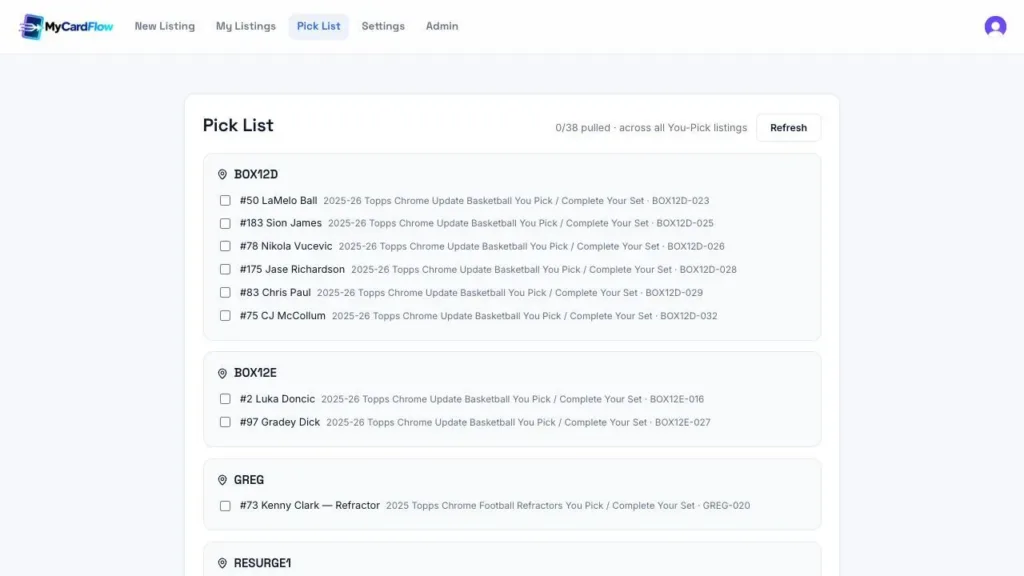
To find sold trading cards quickly, give each storage area a short label, assign cards a numbered location, and keep that location with the listing record. MyCardFlow’s You-Pick pick list groups sold cards by storage box so you can pull them in a consistent order.
You do not need a complicated inventory system to start. You need a reference that points to one physical place—and a habit of updating it whenever a card moves.
1. Label your boxes and rows
Choose a format you can read from the shelf. For example, BOX3A can mean box 3, row A. Label the actual box and row, and use the same spelling and capitalization in MyCardFlow. Avoid near-identical labels that become hard to distinguish when you are packing orders.
Use one location convention across sets and listing types. You can still group cards by sport or set physically, but the location should identify where the card is now rather than only describing what it is.
2. Give individual cards a stable position
Add a position to the box reference: BOX3A-001, BOX3A-002, and so on. Use numbered dividers or another physical system that lets you locate the reference without recounting the entire row.
Do not renumber all remaining cards each time one sells. A gap is easier to manage than changing dozens of location records. If you reuse a position later, make sure it no longer refers to an unsold copy.
One card gets its own title, photos and price. Useful when buyers search for that specific card.
The buyer purchases every included card together for one total price.
The buyer selects individual choices, each with its own price and available quantity.
3. Record locations while preparing listings
In MyCardFlow, Settings → Listings → Default card location provides a starting reference. Review actual locations in the listing workflow before publishing. The default should match the box you are using for that batch.
Singles have card locations, while a lot location identifies where the entire lot is stored. In a You-Pick listing, review the locations of individual copies, including duplicates. Two identical cards may become one choice with quantity two while physically occupying different positions.
4. Pull sold You-Pick cards by box
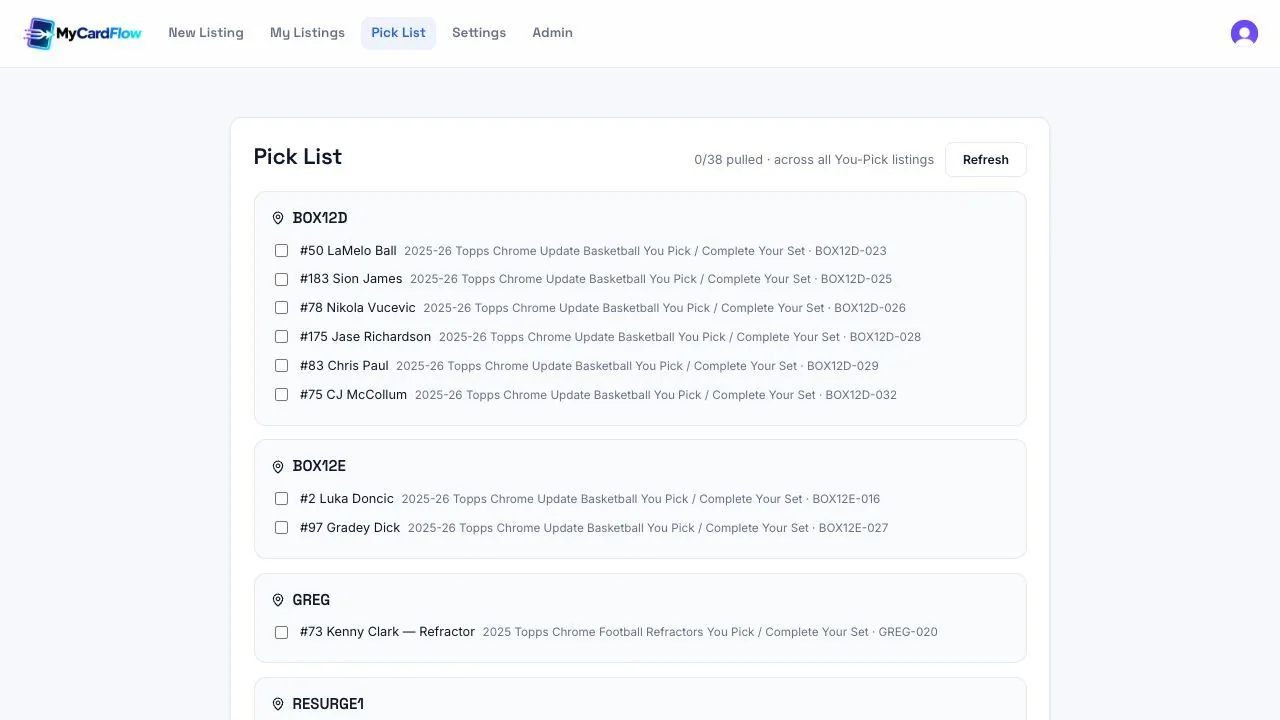
Open Pick List in the MyCardFlow navigation. It checks eBay for sales and groups outstanding You-Pick cards by location. Use Refresh when you need another check and read any sync warning before relying on the list.
For each row, go to the named box, locate the numbered position, and compare the physical card with the name, number, and parallel in the list. Check off the card after pulling it. Keep cards for different orders separated while you work.
The pick list shown here is for You-Pick listings. Do not assume it is a complete packing list for every single and bulk-lot order in your eBay account.
5. Match cards to orders before packing
A list grouped by box is convenient for walking through inventory. Your final packing check should still be against the individual eBay order: buyer, purchased choices, quantities, and selected delivery service.
After completing the physical work, use the appropriate completion controls in MyCardFlow. The pick-list completion action is not a postage purchase or proof that a parcel has entered the mail. Handle labels and shipment confirmation in your shipping workflow.
Choose packaging that suits the actual order. See our PWE packing guide and shipping-policy setup guide.
A simple routine for new inventory
- Label the destination box before adding cards.
- Photograph and identify a manageable batch.
- Review card details and record the locations.
- Put the cards in those physical positions.
- Publish only after the digital and physical records agree.
When restocking a You-Pick, add the new copy’s location during the review. Our photo-to-You-Pick walkthrough shows how locations fit into the listing process.
To connect this storage routine with incoming inventory, see how to plan 100–500 sports cards a week with MyCardFlow, from image capture through publication and putting cards away.
Frequently asked questions
Should duplicate cards share a location?
Record where each copy actually lives. They can share a buyer-facing choice while having different physical locations.
What if I move cards into another box?
Update their location records as part of the move. Leaving the old reference defeats the system when an order arrives.
What should I do if the pick list cannot sync?
Retry Refresh and review the warning. Check eBay’s current orders before treating the displayed list as complete.
Make the next order easier to find
Choose a consistent naming convention.
Save the appropriate category or physical location.
Confirm the record matches the listing and cards.