
How MyCardFlow Builds on eBay’s Tools for Card Sellers
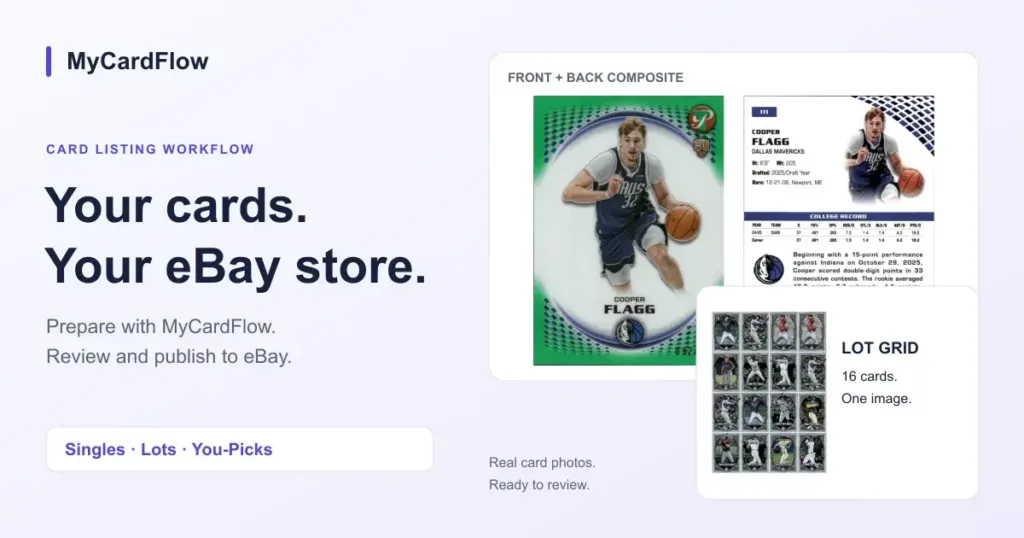
eBay gives card sellers a place to reach buyers, research sales, publish listings and manage orders. MyCardFlow connects to that selling workflow: it helps turn your card photos into listing details you can review and publish to your own eBay account.
That combination is useful when the next job is a stack of cards. You can use eBay’s research and seller tools while preparing individual listings, lots and You-Picks in a workspace built around cards.
Start with eBay’s selling tools
Seller Hub brings listings, orders, performance and payments into one place. eBay also provides listing tools for creating and managing listings, including bulk workflows. If your current setup handles the cards you sell comfortably, you can keep using it.
For pricing research, eBay Product Research lets sellers explore sales data and refine searches by factors such as category and condition. Match the exact set, card number, parallel and grade before using a sale as a comparison.
MyCardFlow adds card-specific preparation to this routine. Upload phone photos or saved scanner images, review the suggested card details and listing fields, then publish through your connected eBay account.
How eBay and MyCardFlow fit together
| Your next task | How the tools work together |
|---|---|
| Research a price | Use eBay Product Research and sold listings to explore relevant sales. In MyCardFlow, open sold comps while reviewing a card, then set or edit its asking price. |
| Prepare a stack of singles | eBay supports individual and bulk listing workflows. MyCardFlow helps you prepare card photos as a batch, with a separate draft, editable title and card details for each listing. |
| Choose how to sell a group | Prepare singles, a lot at one total price, or a You-Pick with a price and quantity for each choice in MyCardFlow. Publish the format you choose to your eBay account. |
| Publish reviewed listings | Connect MyCardFlow through eBay’s official sign-in and send the reviewed listings to your seller account. Check the prices, quantities and selling policies before publishing. |
| Manage the sale | Use eBay Seller Hub for orders, shipping, buyer requests and payments. In MyCardFlow, return to saved listing work and manage supported You-Pick restocking and location-based pick lists. |
Small details that carry through to your eBay listings
Automatic eBay Store category mapping
Load categories from your connected eBay Store and map sports and games to the destinations you use. New listings can follow those saved mappings. For singles, choose one category for a batch or override a particular card; for lots and You-Picks, review the category for the whole listing. You decide the mapping, and MyCardFlow applies it during listing preparation. See store categories and batch defaults.
Accept offers at the account level
Turn on Accept offers by default in MyCardFlow’s listing settings so new fixed-price singles and lots start with offers allowed. You can change that choice for an individual listing. The setting enables buyer offers; it does not automatically accept an offer or change existing eBay listings. It does not apply to auctions or You-Picks. See the offers setup guide.
You-Picks and bulk lots for different buying needs
A You-Pick can hold up to 250 choices, each with its own photo, price and quantity, so buyers can choose the cards they need. MyCardFlow also supports restocking and location-based pick lists. A bulk lot sells the included cards together at one total price, with a generated photo grid and a drafted card-by-card description for you to review. These formats let you prepare a set-building selection or a themed group alongside your individual listings.
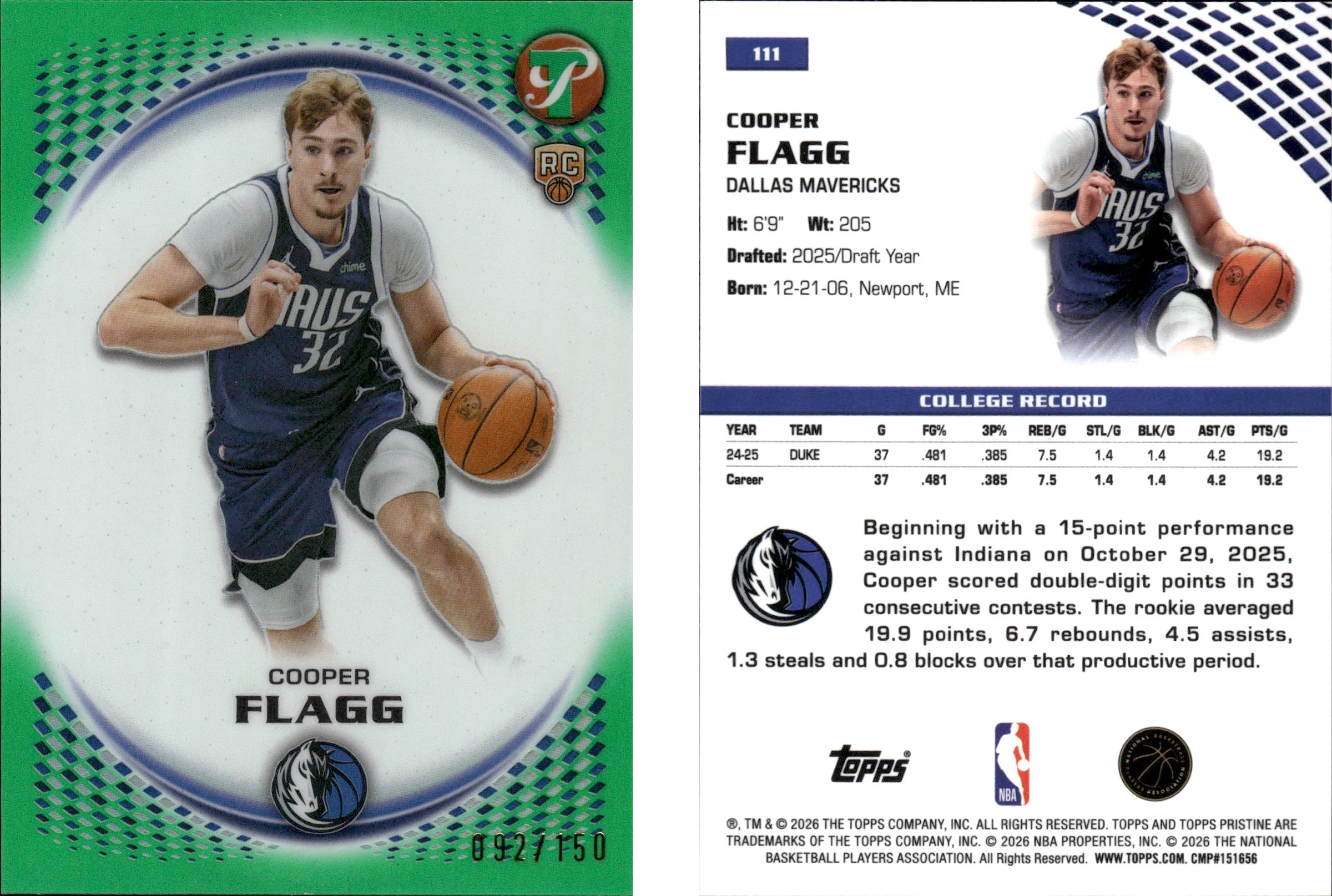
A third composite photo for singles
When both sides are available and the combination-photo setting is enabled, MyCardFlow can add a front-and-back composite as the third photo in a single-card listing. Buyers can see both sides together as well as the separate front and back images. You can turn the option on or off in listing settings.
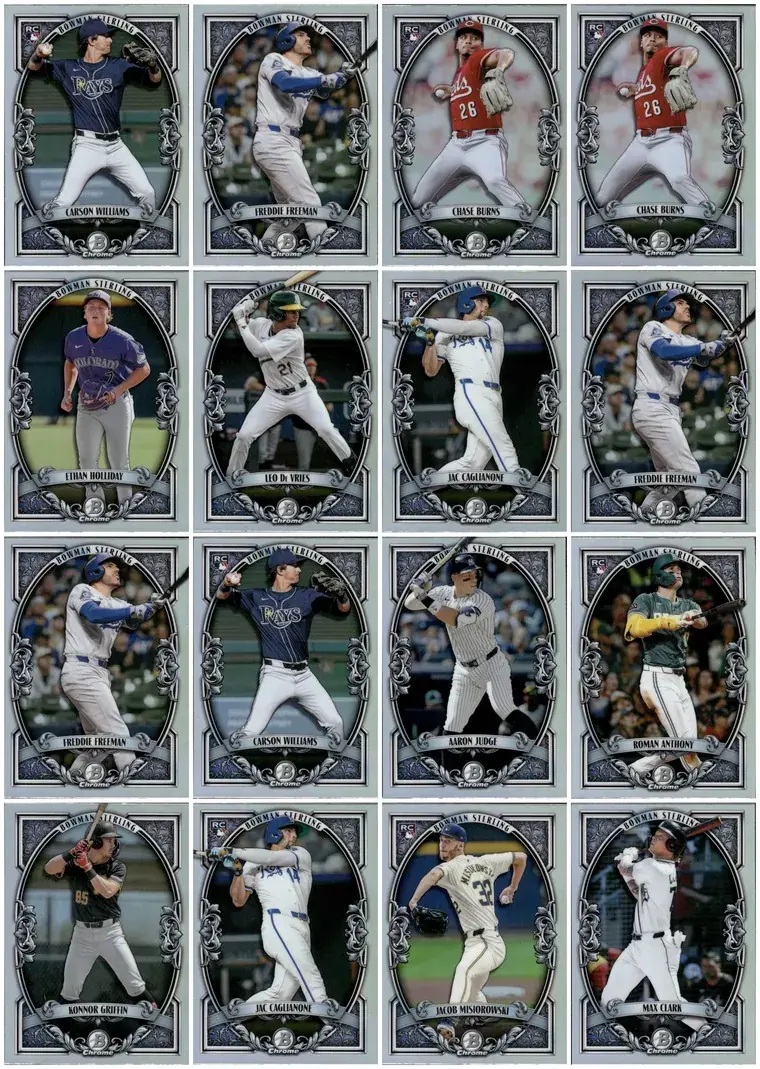
Lot images assembled from your scans
MyCardFlow builds the lot image from the card photos you upload. Review the generated grid and the cards included in the group before publishing. This gives a buyer a view of the lot in one image, with additional image pages for larger groups as needed.
Prepare a batch of separate card listings
Imagine a stack of 20 baseball cards you want to sell individually. Each needs the right photos, card details, title, price and shipping settings.
- Capture the cards. Use your phone or upload saved images from a flatbed or autofeed scanner. Keep each front with its matching back. Our photo and scanning guide explains the image setup.
- Choose Individual listings. Add the images as a batch. Each card has its own draft for review.
- Check the card-specific details. Review the player, year, set, card number, insert or parallel, title and condition. Correct uncertain matches against the physical card.
- Research and set prices. Check relevant sales on eBay, then enter or adjust your asking prices. Review the listing format, quantity and shipping settings too.
- Publish the ready cards. Send the reviewed listings to your connected eBay account, confirm the publication results and store the cards where you can find them when sold.
You are preparing 20 separate listings in this example. If you choose a lot, the group sells together for one total price. A You-Pick lets buyers choose individual cards from a shared listing. Uploading images together works with each format; the format determines what the buyer purchases.
For the detailed walkthrough, see creating individual eBay card listings and our sports card listing software.
Keep your eBay account at the center
Connect MyCardFlow through eBay’s official sign-in. You choose what to publish, and the listings appear under your own seller account. Continue using eBay to manage the buyer transaction and your selling business.
MyCardFlow’s subscription covers its scanning and listing tools, with scan allowances explained on the pricing page. Editing and publishing do not use scan credits. MyCardFlow takes no sales commission; normal eBay fees, selling limits and policies still apply.
For inventory suited to different formats, explore card lots and You-Pick listings. Choose the format around what your buyers are looking for.
Try the combination with your next ten cards
Take a small batch through the complete workflow: capture, review, price, publish and store. Keep using eBay’s research and order tools alongside MyCardFlow. Judge the combination by the work it helps you complete and the details you still need to review.
Get started with MyCardFlow and prepare your next listings for your own eBay account.
Written by the MyCardFlow team. Product descriptions and linked eBay documentation reviewed November 19, 2026.