
MANAGE YOUR ACCOUNT
Listing settings, store categories & defaults
Customize MyCardFlow listing titles, descriptions, offers and store categories. Learn how batch defaults and individual category overrides work.
Settings
Settings has three tabs: eBay, Listings, and Plan & billing. Save changes to your listing defaults with Save settings.
What is in the eBay tab?
Connect or disconnect your seller account, check your ship-from address, and select payment, auction payment, shipping, and return policies. Refresh from eBay imports policy changes. Under Store categories, load your eBay store’s categories and map sports and games to them. Create shipping policy opens the form shown below.
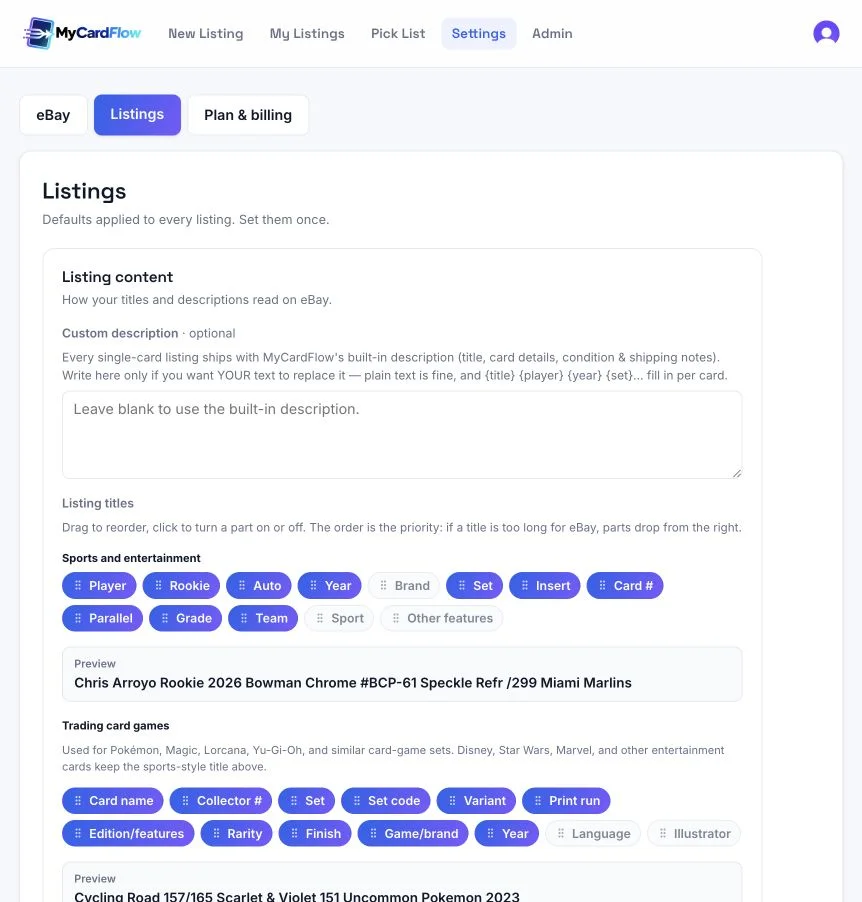
What is in the Listings tab?
Customize single-card descriptions, choose and reorder title parts, set a default condition and card location, enable offers by default, and choose whether to add a front-and-back combination photo. Save your changes with Save settings.
How do custom descriptions and title builders work?
Leaving Custom description blank uses the built-in single-card description. Entering your own text replaces it; supported placeholders fill in card details. In the title builders, click a part to turn it on or off and drag to reorder it. Parts farther right have lower priority when a title is too long.
What is in Plan & billing?
View your plan and remaining scans, choose a subscription, or buy a one-time top-up. Manage billing opens the billing portal for payment details, invoices, and subscription management.
For scan allowances, top-ups and subscription management, read card scans and billing.
Store categories & batch defaults
Choose where listings appear in your connected eBay store. Category choices come directly from your store: use your sport/game mappings, choose one category for a singles batch, or override an individual listing.
- Open Settings → eBay → Store categories and select Load store categories. Map your sports and games to the categories you want, then select Save mappings. Open More sports & games for additional mappings.
- For a singles batch, open Batch defaults → Batch store category. Choose an existing store category, such as Auctions or $5 and Below, to use it across the batch. The choice saves with the batch for when you reopen it.
- Leave Use sport/game mappings selected if each card should follow its sport or game instead. Choose Don’t assign if the batch should have no store category by default.
- Review each card’s Store category. Use batch category follows the batch selection. Choose another store category for an exception, Sport/game mapping to bypass the batch, or Don’t assign to leave that listing unassigned.
- Check your selections before publishing. A batch category applies to unlisted cards that inherit it, including new cards added later. Changing it preserves individual overrides and does not move listings already live on eBay.
How could I use a $5 and Below or Auctions category?
If you already have that category in your eBay store, select it under Batch store category. For example, put a singles batch in $5 and Below, then choose Graded Cards on one listing that belongs elsewhere. The other cards keep following the batch. These names only organize your store: choosing Auctions does not change the listing format, and choosing $5 and Below does not set or limit prices.
Which category wins: the listing, the batch, or the sport/game mapping?
An individual listing’s choice takes priority. Cards set to Use batch category follow the current batch selection. If the batch uses Use sport/game mappings, those cards use their sport/game mapping from Settings. Select Use batch category on a card to remove its individual override and follow the batch again.
Where do I create a category, and what if it is missing?
Create categories in your eBay store, then use Refresh beside the store-category picker in MyCardFlow. You can select categories with no subcategories; nested categories show their full path. If a category was deleted or you connected a different eBay account, refresh and choose a category from the currently connected store.
Does this work for bulk lots and You-Pick?
Yes. Their Store category picker chooses one category for the entire listing. Use the sport/game mapping or select a category from your store, such as Lots or You-Pick, if you have one. A mixed or unrecognized group may have no automatic assignment, so choose a category yourself when needed. The Batch store category control described above is for singles.
Will category changes move my existing eBay listings?
No. Changing mappings or a batch category does not revise listings already live on eBay. Store categories organize your own eBay storefront; they do not change the eBay marketplace category used for a listing.
To use these defaults while reviewing individual cards, follow the single-card listing guide.